In this sectionSending & signing
Sending & signing
Share a waiver by link
Send a client a link they can open on their own phone to fill in and sign, before or during their appointment.
A share link is the fastest way to get consent done. Your client opens it on their own phone, fills it in, and signs — no app, no account, no printer.
Get the link
- Open QR Code in the sidebar.
- Choose the waiver template you want to share.
- Tap Copy link.
You can paste that link anywhere you can paste text: a WhatsApp message, an Instagram DM, your booking confirmation email, or your Instagram bio.
One link per template
Each link is tied to one template, so the client always gets the right form. If you offer tattooing and piercing, create a link for each and label them clearly in your own notes. You can add more under Waiver Links with New link, choosing the template each time.
Send it in advance
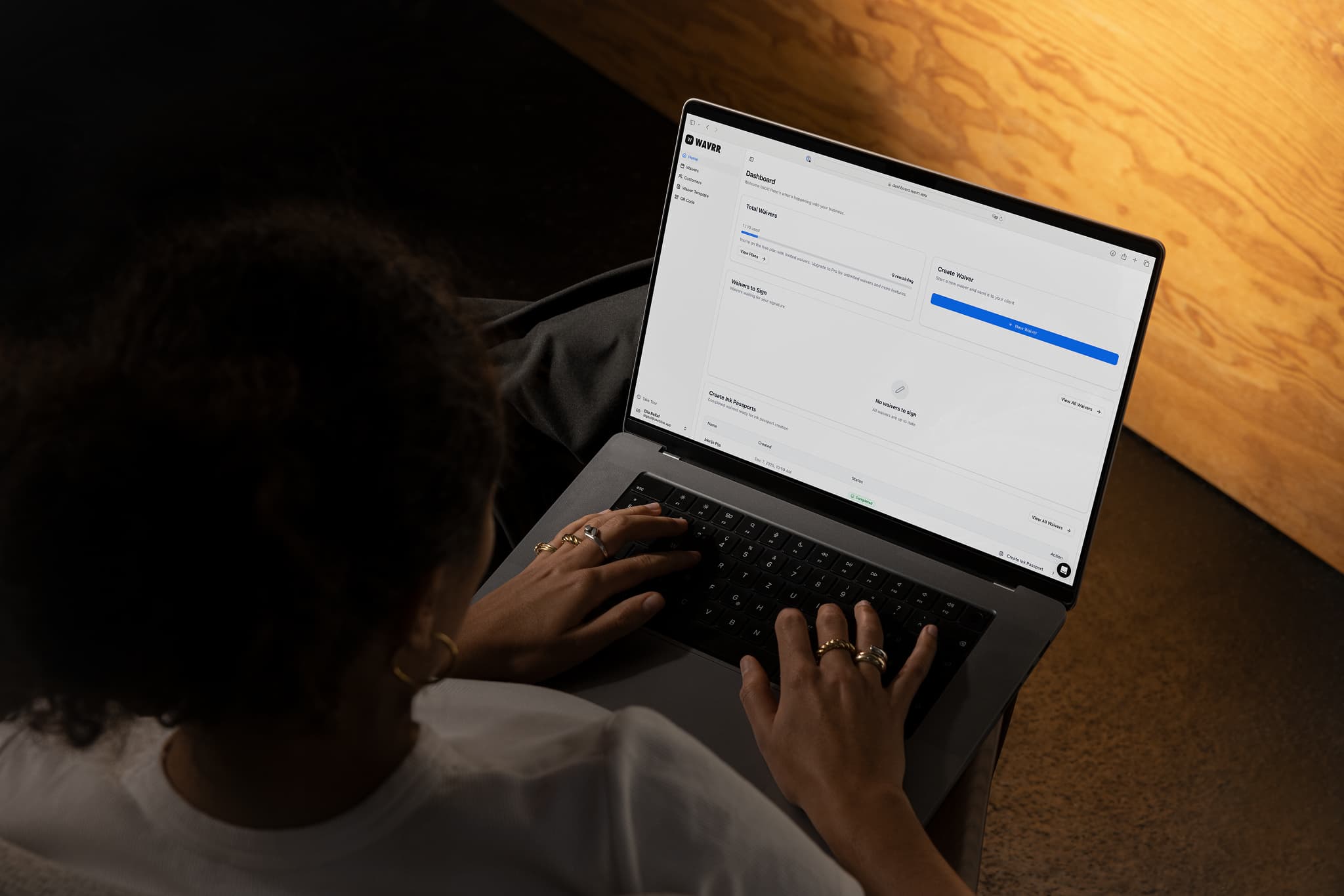
Sending the link the day before the appointment is the single biggest time-saver in Wavrr. The client fills everything in at home, and you arrive to a waiver already sitting at Pending Signature — waiting only for your signature.
Or create the waiver yourself
If you would rather enter the client's details yourself, use Waivers → New Waiver instead and the client signs from there. Use the share link when you want the client to type their own details — it is less work for you and the spelling of their email address is more likely to be right.
If a link stops working
A link keeps working until you retire it or retire its template. If a client tells you the link is invalid or expired, the usual cause is a retired template — create a new link and send that. See Edit or remove a template.
Either answer opens an email to our support team with this article attached. Tell us what was missing and a human will reply — or contact support another way.