In this sectionGetting started
Getting started
Add your studio details
Set your name, studio name and contact details so they appear correctly on every signed PDF and client email.
Your profile details end up on the consent forms your clients sign and in the emails Wavrr sends them, so it is worth getting them right once.
Fill in your profile
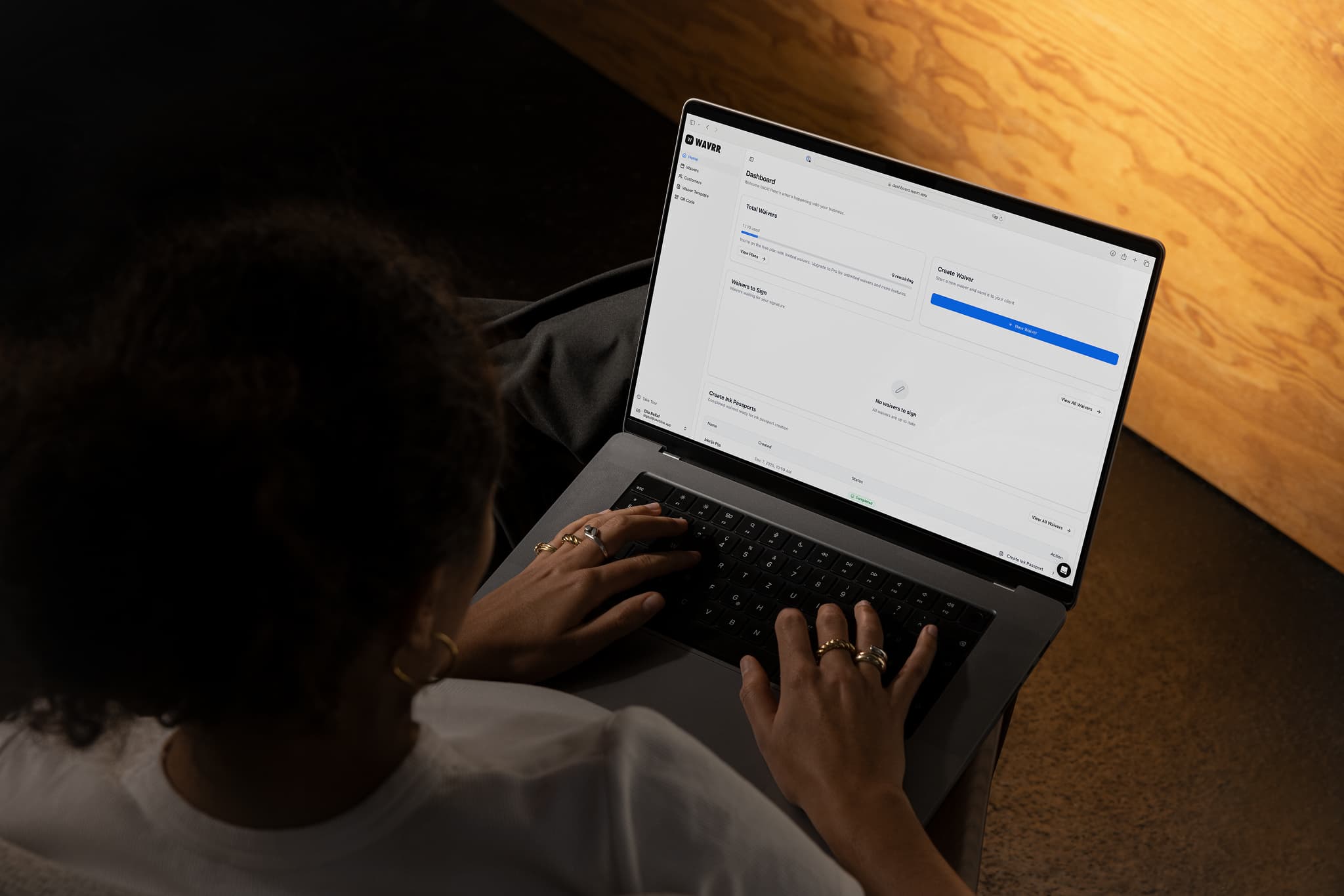
Open Profile from the menu under your name in the bottom-left corner.
| Section | Fields |
|---|---|
| Personal information | First name, last name |
| Contact information | Email, phone number |
| Location information | Address, city, ZIP code |
| Professional information | Studio name, Instagram, bio |
Tap Update Profile to save.
Which of these your clients see
Your studio name and contact details are the ones that matter publicly — they appear on the signed PDF, so a client who needs to reach you a year later can. Your bio and Instagram are for your own reference.
Set your regional defaults
Under Settings you can set your language and country. Country matters more than it looks: it sets the date format used across your waivers and PDFs, so a European studio does not end up reading US-format dates, and it decides the currency you are billed in. See Change your language, country or currency.
Age rules
Settings also holds your Age Settings — the minimum age to sign at all, and the age below which a legal guardian has to co-sign. These default to sensible values but the correct numbers depend on where you work. See Minors and guardian consent.
Either answer opens an email to our support team with this article attached. Tell us what was missing and a human will reply — or contact support another way.