In this sectionAftercare & ink registration
Aftercare & ink registration
Send aftercare after an appointment
Mark an appointment as done, then email the client their aftercare, a personal note and the inks and needles you used. Rolling out gradually.
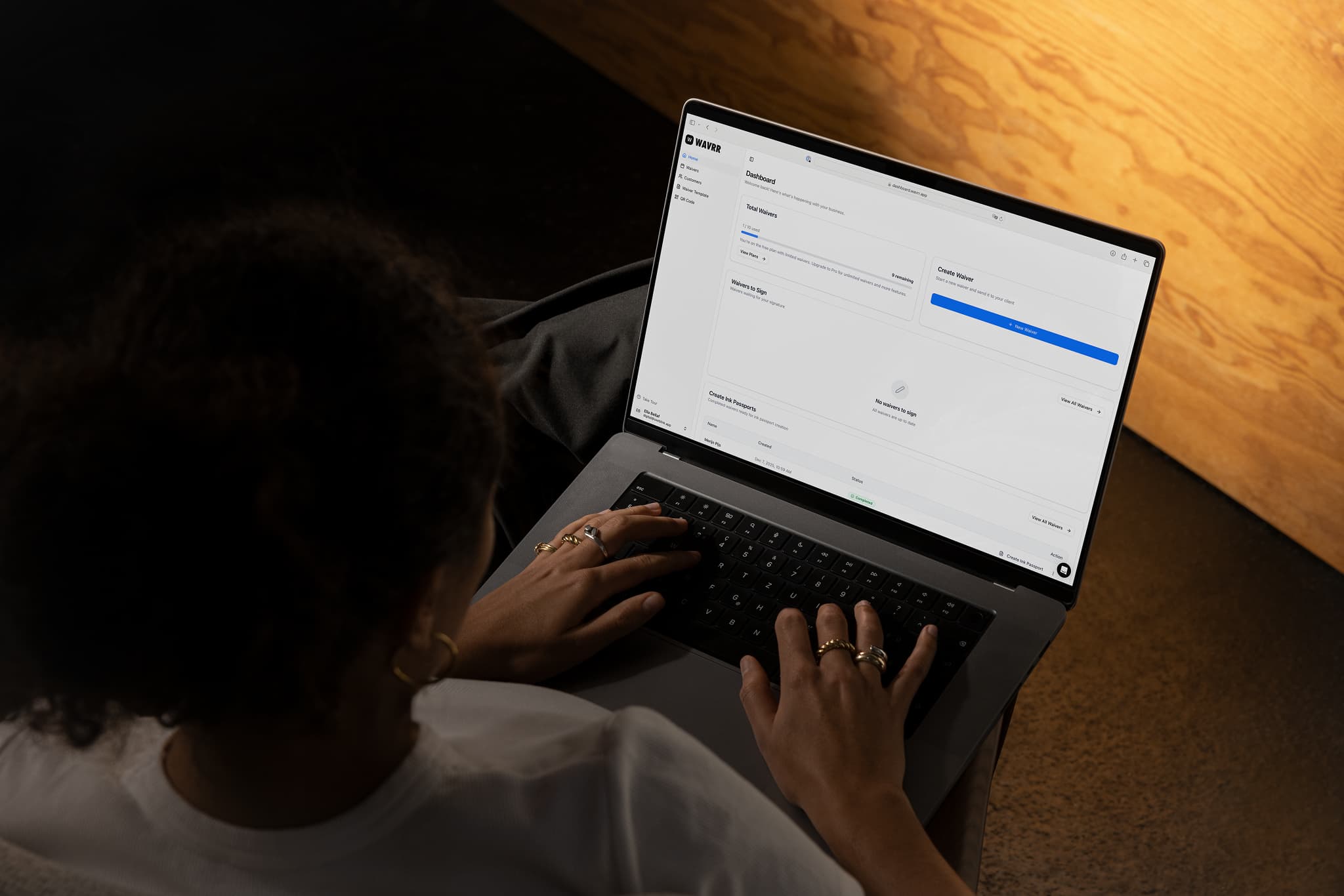
Once the work is finished, the Aftercare / Ink Registration form is where you close the appointment: what the client should do next, what it cost, and what went into their skin. Wavrr turns it into one email with a PDF record attached.
Send it
- Open the appointment — from Waivers on the web, or by opening the waiver in the app. The waiver must be fully signed.
- In the Aftercare / Ink Registration section, tap Mark as done. The form opens.
- Fill in what you want to send. Every field is optional.
- Tap Preview email to see exactly what the client will receive.
- Tap Save & send.
The status then reads Sent to the client's address, with the date.
What you can include
| Section | What it does |
|---|---|
| Aftercare instructions | Pick the Aftercare template to include — your instructions or Wavrr's default, per procedure type |
| Personal message | A note from you, at the top of the email |
| Price | What the session cost |
| Date | The date of the appointment |
| Ink registration | The inks you used, picked from your ink catalog or added on the spot |
| Needle registration | The needles you used, with lot numbers and expiry dates |
Anything you leave empty is marked Won't be sent and simply left out. Only filled-in fields go to the client.
What the client receives
An email called "Your aftercare" from your studio, with your instructions, your message and the appointment details, and the record attached as a PDF. If you have uploaded a business logo, it is at the top of that PDF.
Save without sending
Not every appointment needs an email. Choose Save without sending to keep the record — inks, needles, price — without emailing anyone. If there is nothing to send at all, the button reads Save registration.
If the client has no valid email address on file, Wavrr saves the registration and tells you nothing could be sent.
Send it again
If a client cannot find the email, open the appointment and tap Send again. To stop accidental double sends, you have to wait a few minutes between sends. View PDF opens the record itself — in the app, Download registration.
Keep on top of it
The dashboard and the app's Home tab both show Aftercare to send: appointments signed in the last 30 days that have no aftercare yet. Clear it at the end of each day and nobody leaves without their instructions.
Either answer opens an email to our support team with this article attached. Tell us what was missing and a human will reply — or contact support another way.